mirror of
https://github.com/Lifeforge-app/lifeforge.git
synced 2026-06-28 06:46:24 +00:00

433 lines
18 KiB
Plaintext
433 lines
18 KiB
Plaintext
import { Alert } from "lifeforge-ui"
|
||
import GithubUser from "@/components/GithubUser"
|
||
import CustomLink from "@/components/CustomLink"
|
||
|
||
###### Modules
|
||
|
||
# The Heart of LifeForge
|
||
|
||
One of the core visions of LifeForge has always been to enable the extension of the system's functionality through modules or plugins. With a passion for modularity, LifeForge is built with a module system at its core, allowing you to discover, install, and manage custom modules seamlessly. LifeForge comes with its own module registry where you can find various modules to make your LifeForge instance truly your own.
|
||
|
||
---
|
||
|
||
<section id="what-are-modules">
|
||
## What are Modules?
|
||
|
||
Think of modules as **apps within your LifeForge system**. Just like how you install apps on your phone to add new features, you can install modules in LifeForge to extend what it can do.
|
||
|
||
Each module is a self-contained package that adds specific functionality to your LifeForge instance. Modules can be:
|
||
|
||
- **Productivity tools** – like project manager, to-do lists, calendars, or idea boxes
|
||
- **Utility apps** – like currency converters, password managers, or timers
|
||
- **Entertainment** – like music players, movie trackers, or games
|
||
- **Integrations** – connecting LifeForge with external services
|
||
|
||
The beauty of modules is that they work independently from each other. You can install or remove any module without affecting the rest of your system or losing data from other modules.
|
||
|
||
</section>
|
||
|
||
<section id="some-back-story">
|
||
## Some Back Story
|
||
|
||
Back in the day, LifeForge was using Git submodule system to manage modules. It uses a separate `.gitmodules` file to track the submodules and their commit hashes, and for each submodule, it will create a `.git` file in the corresponding directory for tracking purpose. It was these files that brought tons of headache to the system and rendered it extremely fragile. In the `.gitmodules` file, you must always make sure the records in the `.gitmodules` file are in sync with the actual `.git` files present in the directory, or else any of the `git submodule` commands will fail, and you would need to get ready to be faced with errors in deployment to the cloud. And yup, all these issues are just the tip of the iceberg, and they must be resolved manually before you can even begin to use the system. ;-;
|
||
|
||
As the year 2026 breezes in, it signals the end of the old system and the beginning of a new era. A brilliant idea by <GithubUser username="lukashow" /> and about 20 hours of non-stop grinding, we have finally come up with a new system that is much more stable and user-friendly, replacing the problematic legacy Git submodule system.
|
||
|
||
The new system is based on the idea of treating each LifeForge module as a node packages. Instead of reinventing the wheel and craft ourselves a new package manager that is no where near as good as those that has already been well tested by the community and the industry, we realized that a perfect solution is already available to us since the very beginning - the adorable and beloved little `bun`.
|
||
|
||
For those who are not familiar with the NodeJS ecosystem, NodeJS is a JavaScript runtime built on Chrome's V8 JavaScript engine, but that's it. What makes NodeJS truly powerful is its package manager, the Node Package Manager (NPM), which allows developers to easily share and reuse code through packages. `bun` is a modern JavaScript runtime like NodeJS, but it comes with a built-in package manager that is designed to be fast and efficient.
|
||
|
||
In order to let the community share their packages and libraries to others, the NPM registry was created, which is a public repository (or database) of NodeJS packages that anyone can access and use. It is the largest software registry in the world, with millions of packages available for download.
|
||
|
||
However, if we were to publish LifeForge modules to the NPM registry, our packages will easily be lost in the sea of millions of other packages, making it hard for users to discover and use them. Fortunately, `npm` is kind enough to allow the creation of custom registries, which are alternative repositories that can be used to host and distribute packages. Thanks to this fact and the open-sourced [`verdaccio`](https://verdaccio.org/) project, we were able to set up our own LifeForge module registry, which is tailored specifically for LifeForge modules.
|
||
|
||
</section>
|
||
|
||
<section id="how-modules-work">
|
||
## How Modules Work
|
||
|
||
Behind the scenes, LifeForge treats each module as a **package** – similar to how apps are distributed through app stores. We maintain our own **LifeForge Module Registry** (nicknamed "Forgistry") where all available modules are published and can be downloaded.
|
||
|
||
When you install a module:
|
||
1. LifeForge downloads the module package from the registry
|
||
2. It sets up everything the module needs to run
|
||
3. The module appears in your sidebar, ready to use
|
||
|
||
When you uninstall a module:
|
||
1. The module code is removed from your system
|
||
2. Your data is kept safe (it won't be deleted)
|
||
3. The module disappears from your sidebar
|
||
|
||
<Alert className="mt-6" type="note">
|
||
Don't worry about the technical details – the ForgeCLI tool handles everything for you automatically!
|
||
</Alert>
|
||
|
||
</section>
|
||
|
||
<section id="types-of-modules">
|
||
## Types of Modules
|
||
|
||
You'll encounter two types of modules in the registry:
|
||
|
||
### Official Modules
|
||
|
||
These are modules created and maintained by the LifeForge team. They adhere strict to LifeForge's ecosystem and are guaranteed to work well with your system (most of them are still in early development phase though). You can identify them by the `lifeforge--` prefix in their name.
|
||
|
||
**Examples:**
|
||
- `lifeforge--calendar` – A full-featured calendar
|
||
- `lifeforge--todo-list` – Task management
|
||
- `lifeforge--idea-box` – Capture and organize your ideas
|
||
- `lifeforge--wallet` – Personal finance tracking
|
||
|
||
### Community Modules
|
||
|
||
These are modules created by community developers who want to share their creations. They are identified by the developer's username prefix.
|
||
|
||
**Examples:**
|
||
- `melvinchia3636--invoice-maker` – Create and manage invoices
|
||
- `melvinchia3636--modrinth` – Minecraft mod browser
|
||
|
||
<Alert className="mt-6" type="caution">
|
||
**Community modules are NOT reviewed or verified by the LifeForge team before being published.** Install community modules at your own risk. They may contain bugs, security vulnerabilities, or malicious code. We strongly recommend:
|
||
|
||
- Only installing modules from developers you trust
|
||
- Reviewing the module's source code if possible
|
||
- Backing up your data before installing unfamiliar modules
|
||
- Checking community feedback and the developer's reputation
|
||
</Alert>
|
||
|
||
</section>
|
||
|
||
<section id="discovering-modules">
|
||
## Discovering Modules
|
||
|
||
Ready to explore what modules are available? Here's how to find them:
|
||
|
||
### Using the Module Registry
|
||
|
||
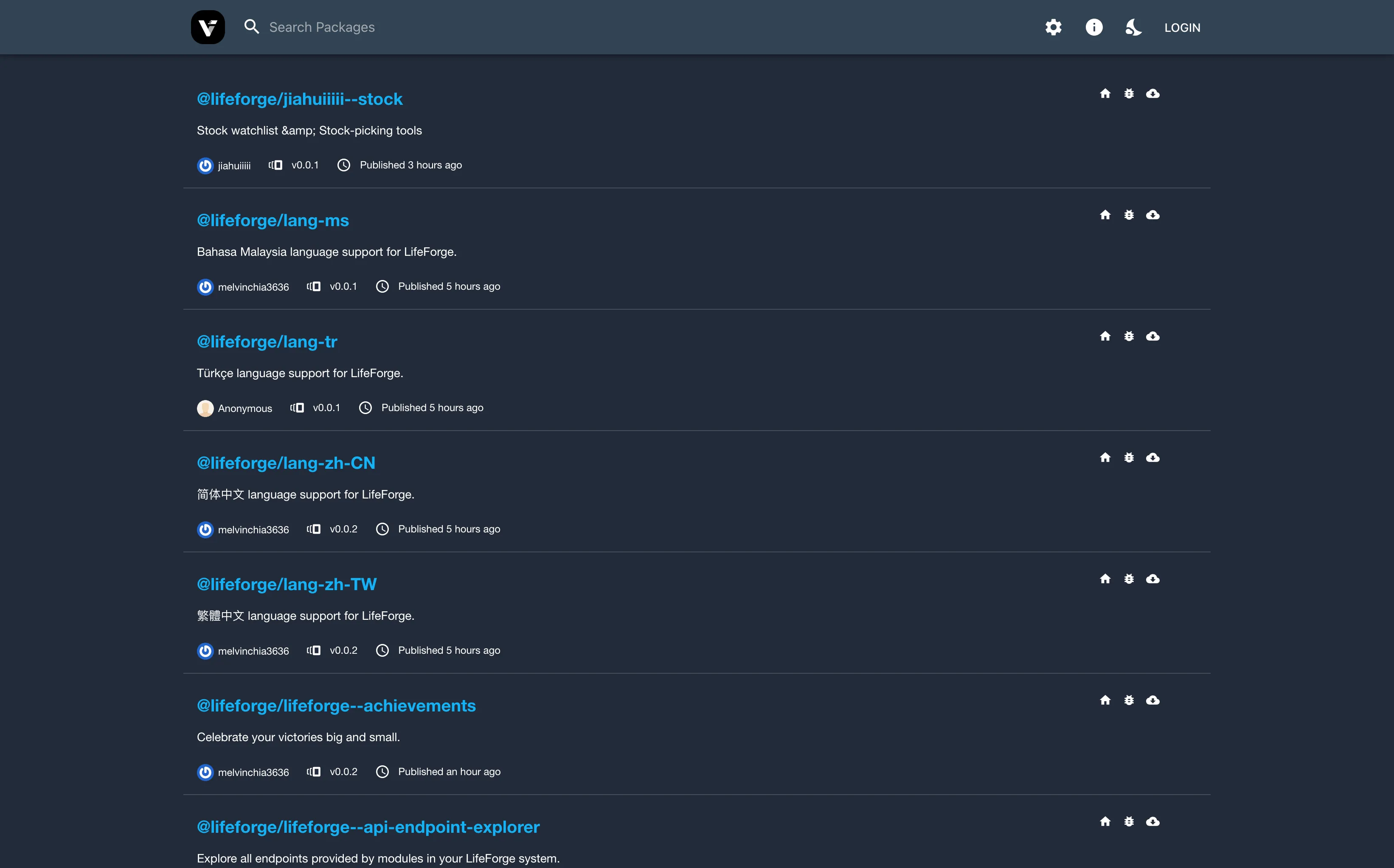
Visit the [LifeForge Module Registry](https://registry.lifeforge.dev) to browse all available modules. On this website, you can:
|
||
|
||
- **Browse** through all published modules
|
||
- **Search** for modules by name or keyword
|
||
- **Read descriptions** to understand what each module does
|
||
- **View details** like version number and author information
|
||
|
||
<CustomLink to="https://registry.lifeforge.dev" text="Visit the LifeForge Module Registry" />
|
||
|
||
|
||
|
||
### Understanding Module Names
|
||
|
||
Every module has a **full module name** that you'll use for all CLI commands. This name consists of two parts separated by double hyphens (`--`):
|
||
|
||
```plaintext
|
||
<author>--<module-name>
|
||
```
|
||
|
||
| Part | Description | Example |
|
||
|------|-------------|---------|
|
||
| `author` | Who created the module | `lifeforge` or `melvinchia3636` |
|
||
| `module-name` | The module's identifier | `calendar`, `idea-box`, `invoice-maker` |
|
||
|
||
**Examples of full module names:**
|
||
- `lifeforge--calendar` – The Calendar module by the LifeForge team
|
||
- `lifeforge--idea-box` – The Idea Box module by the LifeForge team
|
||
- `melvinchia3636--invoice-maker` – The Invoice Maker module by melvinchia3636
|
||
|
||
<Alert className="mt-6" type="important">
|
||
**Always use the full module name** (including the author prefix) when running CLI commands. For example, use `lifeforge--calendar`, not just `calendar`.
|
||
</Alert>
|
||
|
||
<Alert className="mt-6" type="tip">
|
||
We're working on a built-in module marketplace that will let you browse and install modules directly from within LifeForge – stay tuned!
|
||
</Alert>
|
||
|
||
</section>
|
||
|
||
<section id="installing-modules">
|
||
## Installing Modules
|
||
|
||
Installing a module takes just a few simple steps. Before you begin, make sure:
|
||
|
||
1. You have access to a terminal or command line
|
||
2. You're in the LifeForge root directory
|
||
3. Your LifeForge instance is **NOT** running
|
||
|
||
### Step-by-Step Installation
|
||
|
||
<Alert className="mt-6" type="important">
|
||
Make sure you have finished [basic installation steps](/getting-started/installation) and [initialized the database](/getting-started/configuration) before continuing in this section! If not, you may come into Bun's out-of-memory issues or database migration failed during installations.
|
||
</Alert>
|
||
|
||
**Step 1:** Open your terminal and navigate to your LifeForge folder.
|
||
|
||
**Step 2:** Run the install command with the module name:
|
||
|
||
```bash
|
||
bun forge modules install <module-name>
|
||
```
|
||
|
||
**Step 3:** Wait for the installation to complete. You'll see progress messages as the module is downloaded and set up.
|
||
|
||
**Step 4:** Start LifeForge, and your new module will appear in the sidebar!
|
||
|
||
### Example: Installing the Calendar
|
||
|
||
Let's say you want to install the Calendar module. Here's exactly what you would type:
|
||
|
||
```bash
|
||
bun forge modules install lifeforge--calendar
|
||
```
|
||
|
||
And there you go! Go back to your LifeForge dashboard, and you'll find the Calendar module appears on your sidebar.
|
||
|
||
### Installing Multiple Modules at Once
|
||
|
||
You can install several modules in one command by listing them all:
|
||
|
||
```bash
|
||
bun forge modules install lifeforge--calendar lifeforge--todo-list lifeforge--idea-box
|
||
```
|
||
|
||
<Alert className="mt-6" type="warning">
|
||
**Important:** Always stop your LifeForge instance before installing or uninstalling modules. Running these commands while LifeForge is active may cause unexpected issues.
|
||
</Alert>
|
||
|
||
### What Happens During Installation?
|
||
|
||
When you install a module, the ForgeCLI automatically:
|
||
|
||
1. **Downloads** the module from the registry
|
||
2. **Installs dependencies** – any additional packages the module needs
|
||
3. **Sets up the database** – creates any tables needed to store your data
|
||
4. **Registers the module** – adds it to your LifeForge configuration
|
||
|
||
You don't need to do anything else – just run the command and you're done!
|
||
|
||
</section>
|
||
|
||
<section id="managing-installed-modules">
|
||
## Managing Installed Modules
|
||
|
||
You can manage your modules either through the built-in UI Module Manager or using the ForgeCLI command line tool.
|
||
|
||
### Using UI Module Manager
|
||
|
||
LifeForge comes with a built-in **Module Manager** that provides a graphical interface for viewing and organizing your modules.
|
||
|
||
1. Go to **Settings** in the sidebar.
|
||
2. Click on **Module Manager**.
|
||
3. You'll see two tabs:
|
||
- **Modules**: Lists all installed modules, showing their version, author, and description.
|
||
- **Categories**: Allows you to view and manage module categories.
|
||
|
||
### Using ForgeCLI
|
||
|
||
If you prefer the command line, the ForgeCLI provides comprehensive tools for managing your modules.
|
||
|
||
#### Viewing Your Installed Modules
|
||
|
||
To see a list of all modules currently installed on your LifeForge instance:
|
||
|
||
```bash
|
||
bun forge modules list
|
||
```
|
||
|
||
This will display all installed modules along with their version numbers.
|
||
|
||
Alternatively, you can also check the `apps` directory in your LifeForge installation folder. Each module will be stored in its own subdirectory.
|
||
|
||
#### Updating Modules
|
||
|
||
Modules get updates over time with new features and bug fixes. To update your modules to the latest version:
|
||
|
||
**Update a specific module:**
|
||
```bash
|
||
bun forge modules upgrade lifeforge--calendar
|
||
```
|
||
|
||
**Check all modules for updates:**
|
||
```bash
|
||
bun forge modules upgrade
|
||
```
|
||
|
||
When you run the upgrade command without specifying a module, it will check all your installed modules and show you which ones have updates available.
|
||
|
||
<Alert className="mt-6" type="note">
|
||
It's a good practice to keep your modules updated to benefit from the latest improvements and security fixes.
|
||
</Alert>
|
||
|
||
</section>
|
||
|
||
<section id="uninstalling-modules">
|
||
## Uninstalling Modules
|
||
|
||
If you no longer need a module, you can easily remove it from your system.
|
||
|
||
### Step-by-Step Uninstallation
|
||
|
||
**Step 1:** Make sure LifeForge is not running.
|
||
|
||
**Step 2:** Run the uninstall command with the full module name:
|
||
|
||
```bash
|
||
bun forge modules uninstall <author>--<module-name>
|
||
```
|
||
|
||
**Step 3:** The module will be removed from your system.
|
||
|
||
### Example: Uninstalling the Calendar
|
||
|
||
To remove the Calendar module:
|
||
|
||
```bash
|
||
bun forge modules uninstall lifeforge--calendar
|
||
```
|
||
|
||
### Uninstalling Multiple Modules
|
||
|
||
Just like installation, you can uninstall several modules at once:
|
||
|
||
```bash
|
||
bun forge modules uninstall lifeforge--calendar lifeforge--todo-list lifeforge--idea-box
|
||
```
|
||
|
||
<Alert className="mt-6" type="note">
|
||
**Your data is safe!** Uninstalling a module only removes the module's code – it does **NOT** delete any data you've created with that module. This is intentional to prevent accidental data loss.
|
||
|
||
If you reinstall the module later, all your previous data will still be there!
|
||
</Alert>
|
||
|
||
<Alert className="mt-6" type="warning">
|
||
If you want to permanently delete a module's data, you'll need to do it manually through the PocketBase admin dashboard. Be very careful with this action as it cannot be undone.
|
||
</Alert>
|
||
|
||
</section>
|
||
|
||
<section id="module-categories">
|
||
## Module Categories
|
||
|
||
Modules are organized into categories to help you find what you're looking for. When you install a module, it automatically appears in the correct section of your sidebar.
|
||
|
||
Common categories include:
|
||
|
||
| Category | Description | Examples |
|
||
|----------|-------------|----------|
|
||
| **Productivity** | Tools to help you get things done | Calendar, To-Do List, Pomodoro Timer |
|
||
| **Finance** | Money management and tracking | Wallet, Invoice Maker |
|
||
| **Creativity** | Capture ideas and inspiration | Idea Box, Scores Library |
|
||
| **Entertainment** | Fun and leisure | Music, Movies, Sudoku |
|
||
| **Utilities** | Helpful tools and converters | Currency Converter, Passwords |
|
||
|
||
The sidebar automatically groups your installed modules by category, making it easy to find what you need.
|
||
|
||
### Customizing Category Order
|
||
|
||
By default, categories are sorted alphabetically in the sidebar. However, you can customize the order of categories by creating a configuration file.
|
||
|
||
**Step 1:** Create a file named `cat.config.json` in your `apps` directory.
|
||
|
||
**Step 2:** Add a JSON array listing the categories in your preferred order:
|
||
|
||
```json
|
||
[
|
||
"Productivity",
|
||
"Finance",
|
||
"Creativity",
|
||
"Entertainment",
|
||
"Utilities"
|
||
]
|
||
```
|
||
|
||
Categories listed in this file will appear in the specified order. Any categories not listed will appear after them, sorted alphabetically.
|
||
|
||
### Special Category Positions
|
||
|
||
Some categories have fixed positions that cannot be changed:
|
||
|
||
| Position | Categories |
|
||
|----------|------------|
|
||
| **Top of sidebar** | Modules with `<START>` category |
|
||
| **Your custom order** | Categories listed in `cat.config.json` |
|
||
| **Alphabetically sorted** | Any other categories |
|
||
| **Bottom of sidebar** | `Miscellaneous`, `Settings`, `SSO`, and modules with `<END>` category |
|
||
|
||
<Alert className="mt-6" type="note">
|
||
Most users won't need to customize category order – the default alphabetical sorting works well for most setups. This feature is mainly useful for power users who want fine-grained control over their sidebar organization.
|
||
</Alert>
|
||
|
||
</section>
|
||
|
||
<section id="troubleshooting">
|
||
## Troubleshooting
|
||
|
||
### "Module already exists" Error
|
||
|
||
This means the module is already installed. If you want to reinstall it, uninstall it first:
|
||
|
||
```bash
|
||
bun forge modules uninstall <module-name>
|
||
bun forge modules install <full-module-name>
|
||
```
|
||
|
||
### "Module not found in registry" Error
|
||
|
||
Double-check that you've typed the module name correctly. Remember:
|
||
- Use lowercase letters
|
||
- Use hyphens (-) between words, not spaces
|
||
- Include the author prefix (e.g., `lifeforge--calendar`)
|
||
|
||
### Module Doesn't Appear After Installation
|
||
|
||
1. Make sure you restarted LifeForge after installation
|
||
2. Check that the installation completed without errors
|
||
3. Try running `bun forge modules list` to verify the module is installed
|
||
|
||
### Need More Help?
|
||
|
||
If you're still having issues, check out our [GitHub Issues](https://github.com/LifeForge-app/lifeforge/issues) to report bugs or [GitHub Discussions](https://github.com/LifeForge-app/lifeforge/discussions) for general support and questions.
|
||
|
||
</section>
|
||
|
||
<section id="command-reference">
|
||
## Command Reference
|
||
|
||
Here's a handy summary of all the module commands:
|
||
|
||
| What You Want to Do | Command | Aliases |
|
||
|---------------------|---------|---------|
|
||
| List installed modules | `bun forge modules list` | `ls` |
|
||
| Install a module | `bun forge modules install <author>--<module>` | `i`, `add` |
|
||
| Uninstall a module | `bun forge modules uninstall <author>--<module>` | `un`, `rm`, `remove` |
|
||
| Update a specific module | `bun forge modules upgrade <author>--<module>` | `up`, `u` |
|
||
| Check all modules for updates | `bun forge modules upgrade` | `up`, `u` |
|
||
|
||
<Alert className="mt-6" type="note">
|
||
Remember: `<author>--<module>` means the full module name like `lifeforge--calendar` or `melvinchia3636--invoice-maker`.
|
||
</Alert>
|
||
|
||
<Alert className="mt-6" type="tip">
|
||
**Pro tip:** Use aliases to save time! For example:
|
||
- `bun forge modules i lifeforge--calendar` instead of `install`
|
||
- `bun forge modules rm lifeforge--calendar` instead of `uninstall`
|
||
- `bun forge modules up` instead of `upgrade`
|
||
</Alert>
|
||
|
||
</section>
|
||
|
||
<section id="whats-next">
|
||
## What's Next?
|
||
|
||
Now that you know how to manage modules, here are some things you might want to explore:
|
||
|
||
- **Browse the registry** – Find modules that match your needs at [registry.lifeforge.dev](https://registry.lifeforge.dev)
|
||
- **Try popular modules** – Start with well-established modules like Calendar, To-Do List, or Wallet
|
||
- **Join the community** – Share feedback and discover new modules on [GitHub Discussions](https://github.com/LifeForge-app/lifeforge/discussions)
|
||
- **Become a developer** – Interested in creating your own modules? Check out the [Developer Guide](/developer-guide/modules)
|
||
|
||
<Alert className="mt-6" type="tip">
|
||
The LifeForge Module Registry is a community-driven platform. If you're a developer, consider publishing your own modules to help grow the ecosystem!
|
||
</Alert>
|
||
|
||
</section>
|