mirror of
https://github.com/Mail-0/Zero.git
synced 2026-07-01 08:16:28 +00:00

290 lines
10 KiB
Markdown
290 lines
10 KiB
Markdown
<p align="center">
|
||
<picture>
|
||
<source srcset="apps/mail/public/white-icon.svg" media="(prefers-color-scheme: dark)">
|
||
<img src="apps/mail/public/black-icon.svg" alt="Zero Logo" width="64" style="background-color: #000; padding: 10px;"/>
|
||
</picture>
|
||
</p>
|
||
|
||
# Zero
|
||
|
||
[](https://vercel.com/new/clone?repository-url=https%3A%2F%2Fgithub.com%2Fnizzyabi%2FMail0&env=DATABASE_URL,BETTER_AUTH_SECRET,BETTER_AUTH_URL,BETTER_AUTH_TRUSTED_ORIGINS,GOOGLE_CLIENT_ID,GOOGLE_CLIENT_SECRET,GOOGLE_REDIRECT_URI,GITHUB_CLIENT_ID,GITHUB_CLIENT_SECRET,GITHUB_REDIRECT_URI&envDescription=For%20more%20info%20on%20setting%20up%20your%20API%20keys%2C%20checkout%20the%20Readme%20below&envLink=https%3A%2F%2Fgithub.com%2Fnizzyabi%2FMail0%2Fblob%2Fmain%2FREADME.md&project-name=0&repository-name=0&redirect-url=0.email&demo-title=0&demo-description=An%20open%20source%20email%20app&demo-url=0.email)
|
||
|
||
An Open-Source Gmail Alternative for the Future of Email
|
||
|
||
## What is Zero?
|
||
|
||
Zero is an open-source AI email solution that gives users the power to **self-host** their own email app while also integrating external services like Gmail and other email providers. Our goal is to modernize and improve emails through AI agents to truly modernize emails.
|
||
|
||
## Why Zero?
|
||
|
||
Most email services today are either **closed-source**, **data-hungry**, or **too complex to self-host**.
|
||
0.email is different:
|
||
|
||
- ✅ **Open-Source** – No hidden agendas, fully transparent.
|
||
- 🦾 **AI Driven** - Enhance your emails with Agents & LLMs.
|
||
- 🔒 **Data Privacy First** – Your emails, your data. Zero does not track, collect, or sell your data in any way. Please note: while we integrate with external services, the data passed through them is not under our control and falls under their respective privacy policies and terms of service.
|
||
- ⚙️ **Self-Hosting Freedom** – Run your own email app with ease.
|
||
- 📬 **Unified Inbox** – Connect multiple email providers like Gmail, Outlook, and more.
|
||
- 🎨 **Customizable UI & Features** – Tailor your email experience the way you want it.
|
||
- 🚀 **Developer-Friendly** – Built with extensibility and integrations in mind.
|
||
|
||
## Tech Stack
|
||
|
||
Zero is built with modern and reliable technologies:
|
||
|
||
- **Frontend**: Next.js, React, TypeScript, TailwindCSS, Shadcn UI
|
||
- **Backend**: Node.js, Drizzle ORM
|
||
- **Database**: PostgreSQL
|
||
- **Authentication**: Better Auth, Google OAuth
|
||
<!-- - **Testing**: Jest, React Testing Library -->
|
||
|
||
## Getting Started
|
||
|
||
### Prerequisites
|
||
|
||
**Required Versions:**
|
||
|
||
- [Node.js](https://nodejs.org/en/download) (v18 or higher)
|
||
- [Bun](https://bun.sh) (v1.2 or higher)
|
||
- [Docker](https://docs.docker.com/engine/install/) (v20 or higher)
|
||
|
||
Before running the application, you'll need to set up services and configure environment variables. For more details on environment variables, see the [Environment Variables](#environment-variables) section.
|
||
|
||
### Setup Options
|
||
|
||
You can set up Zero in two ways:
|
||
|
||
<details open>
|
||
<summary><b>Option 1: Standard Setup (Recommended)</b></summary>
|
||
|
||
#### Quick Start Guide
|
||
|
||
1. **Clone and Install**
|
||
|
||
```bash
|
||
# Clone the repository
|
||
git clone https://github.com/Mail-0/Zero.git
|
||
cd Zero
|
||
|
||
# Install dependencies
|
||
bun install
|
||
|
||
# Start database locally
|
||
bun docker:up
|
||
```
|
||
|
||
2. **Set Up Environment**
|
||
|
||
- Copy `.env.example` to `.env` in project root
|
||
```bash
|
||
cp .env.example .env
|
||
```
|
||
- Configure your environment variables (see below)
|
||
- Setup cloudflare with `bun run cf-install`, you will need to run this everytime there is a `.env` change
|
||
- Start the database with the provided docker compose setup: `bun docker:up`
|
||
- Initialize the database: `bun db:push`
|
||
|
||
3. **Start the App**
|
||
|
||
```bash
|
||
bun dev
|
||
```
|
||
|
||
4. **Open in Browser**
|
||
|
||
Visit [http://localhost:3000](http://localhost:3000)
|
||
</details>
|
||
|
||
<details>
|
||
<summary><b>Option 2: Dev Container Setup (For VS Code Users)</b></summary>
|
||
|
||
This option uses VS Code's Dev Containers feature to provide a fully configured development environment with all dependencies pre-installed. It's great for ensuring everyone on the team has the same setup.
|
||
|
||
1. **Prerequisites**
|
||
|
||
- [Docker](https://docs.docker.com/get-docker/)
|
||
- [VS Code](https://code.visualstudio.com/) or compatible editor
|
||
- [Dev Containers extension](https://marketplace.visualstudio.com/items?itemName=ms-vscode-remote.remote-containers)
|
||
|
||
2. **Open in Dev Container**
|
||
|
||
- Clone the repository: `git clone https://github.com/Mail-0/Zero.git`
|
||
- Open the folder in VS Code
|
||
- When prompted, click "Reopen in Container" or run the "Dev Containers: Open Folder in Container" command
|
||
- VS Code will build and start the dev container (this may take a few minutes the first time)
|
||
|
||
3. **Access the App**
|
||
|
||
- The app will be available at [http://localhost:3000](http://localhost:3000)
|
||
|
||
4. **Troubleshooting**
|
||
- If you encounter issues with the container, try rebuilding it using the "Dev Containers: Rebuild Container" command
|
||
- For dependency issues inside the container:
|
||
`bash
|
||
rm -rf node_modules
|
||
rm bun.lockb
|
||
bun install
|
||
`
|
||
</details>
|
||
|
||
### Environment Setup
|
||
|
||
1. **Better Auth Setup**
|
||
|
||
- Open the `.env` file and change the BETTER_AUTH_SECRET to a random string. (Use `openssl rand -hex 32` to generate a 32 character string)
|
||
|
||
```env
|
||
BETTER_AUTH_SECRET=your_secret_key
|
||
```
|
||
|
||
2. **Google OAuth Setup** (Required for Gmail integration)
|
||
|
||
- Go to [Google Cloud Console](https://console.cloud.google.com)
|
||
- Create a new project
|
||
- Add the following APIs in your Google Cloud Project: [People API](https://console.cloud.google.com/apis/library/people.googleapis.com), [Gmail API](https://console.cloud.google.com/apis/library/gmail.googleapis.com)
|
||
- Use the links above and click 'Enable' or
|
||
- Go to 'APIs and Services' > 'Enable APIs and Services' > Search for 'Google People API' and click 'Enable'
|
||
- Go to 'APIs and Services' > 'Enable APIs and Services' > Search for 'Gmail API' and click 'Enable'
|
||
- Enable the Google OAuth2 API
|
||
- Create OAuth 2.0 credentials (Web application type)
|
||
- Add authorized redirect URIs:
|
||
- Development:
|
||
- `http://localhost:8787/api/auth/callback/google`
|
||
- Production:
|
||
- `https://your-production-url/api/auth/callback/google`
|
||
- Add to `.env`:
|
||
|
||
```env
|
||
GOOGLE_CLIENT_ID=your_client_id
|
||
GOOGLE_CLIENT_SECRET=your_client_secret
|
||
```
|
||
|
||
- Add yourself as a test user:
|
||
|
||
- Go to [`Audience`](https://console.cloud.google.com/auth/audience)
|
||
- Under 'Test users' click 'Add Users'
|
||
- Add your email and click 'Save'
|
||
|
||
> [!WARNING]
|
||
> The authorized redirect URIs in Google Cloud Console must match **exactly** what you configure in the `.env`, including the protocol (http/https), domain, and path - these are provided above.
|
||
|
||
3. **Autumn Setup** (Required for some encryption)
|
||
|
||
-Go to [Autumn](https://useautumn.com/)
|
||
-For Local Use, click [onboarding](https://app.useautumn.com/sandbox/onboarding) button and generate an Autumn Secret Key
|
||
-For production, select the production mode from upper left corner and generate an fill the other fields. After that, generate an Autumn Secret Key
|
||
|
||
- Add to `.env`:
|
||
|
||
```env
|
||
AUTUMN_SECRET_KEY=your_autumn_secret
|
||
```
|
||
|
||
### Environment Variables
|
||
|
||
Copy `.env.example` located in the project folder to `.env` in the same folder and configure the following variables:
|
||
|
||
```env
|
||
# Auth
|
||
BETTER_AUTH_SECRET= # Required: Secret key for authentication
|
||
|
||
# Google OAuth (Required for Gmail integration)
|
||
GOOGLE_CLIENT_ID= # Required for Gmail integration
|
||
GOOGLE_CLIENT_SECRET= # Required for Gmail integration
|
||
|
||
# Database
|
||
DATABASE_URL= # Required: PostgreSQL connection string for backend connection
|
||
|
||
# Redis
|
||
REDIS_URL= # Redis URL for caching (http://localhost:8079 for local dev)
|
||
REDIS_TOKEN= # Redis token (upstash-local-token for local dev)
|
||
```
|
||
|
||
For local development a connection string example is provided in the `.env.example` file located in the same folder as the database.
|
||
|
||
### Database Setup
|
||
|
||
Zero uses PostgreSQL for storing data. Here's how to set it up:
|
||
|
||
1. **Start the Database**
|
||
|
||
Run this command to start a local PostgreSQL instance:
|
||
|
||
```bash
|
||
bun docker:up
|
||
```
|
||
|
||
This creates a database with:
|
||
|
||
- Name: `zerodotemail`
|
||
- Username: `postgres`
|
||
- Password: `postgres`
|
||
- Port: `5432`
|
||
|
||
2. **Set Up Database Connection**
|
||
|
||
Make sure your database connection string is in `.env` file. And you have ran `bun run cf-install` to sync the latest env.
|
||
|
||
For local development use:
|
||
|
||
```
|
||
DATABASE_URL="postgresql://postgres:postgres@localhost:5432/zerodotemail"
|
||
```
|
||
|
||
3. **Database Commands**
|
||
|
||
- **Set up database tables**:
|
||
|
||
```bash
|
||
bun db:push
|
||
```
|
||
|
||
- **Create migration files** (after schema changes):
|
||
|
||
```bash
|
||
bun db:generate
|
||
```
|
||
|
||
- **Apply migrations**:
|
||
|
||
```bash
|
||
bun db:migrate
|
||
```
|
||
|
||
- **View database content**:
|
||
```bash
|
||
bun db:studio
|
||
```
|
||
> If you run `bun dev` in your terminal, the studio command should be automatically running with the app.
|
||
|
||
## Contribute
|
||
|
||
Please refer to the [contributing guide](.github/CONTRIBUTING.md).
|
||
|
||
If you'd like to help with translating Zero to other languages, check out our [translation guide](.github/TRANSLATION.md).
|
||
|
||
## Star History
|
||
|
||
[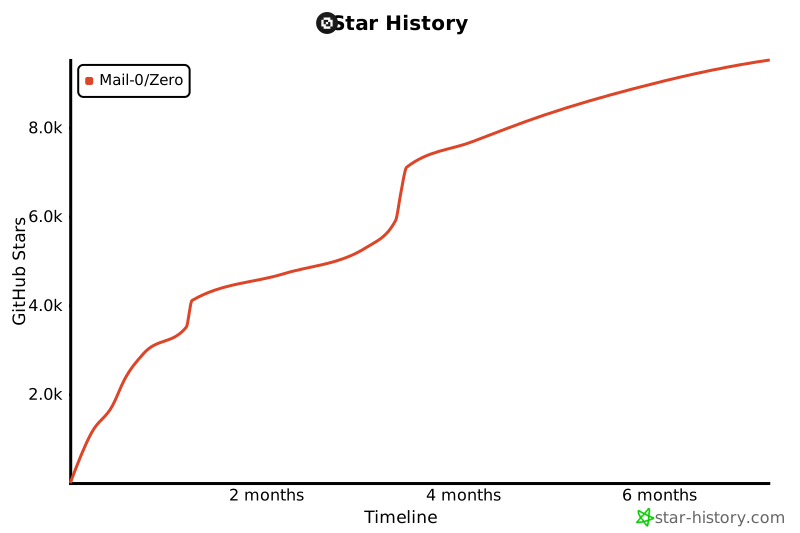](https://star-history.com/#Mail-0/Zero&Timeline)
|
||
|
||
## This project wouldn't be possible without these awesome companies
|
||
|
||
<div style="display: flex; justify-content: center;">
|
||
<a href="https://vercel.com" style="text-decoration: none;">
|
||
<img src="public/vercel.png" alt="Vercel" width="96"/>
|
||
</a>
|
||
<a href="https://better-auth.com" style="text-decoration: none;">
|
||
<img src="public/better-auth.png" alt="Better Auth" width="96"/>
|
||
</a>
|
||
<a href="https://orm.drizzle.team" style="text-decoration: none;">
|
||
<img src="public/drizzle-orm.png" alt="Drizzle ORM" width="96"/>
|
||
</a>
|
||
<a href="https://coderabbit.com" style="text-decoration: none;">
|
||
<img src="public/coderabbit.png" alt="Coderabbit AI" width="96"/>
|
||
</a>
|
||
</div>
|
||
|
||
## 🤍 The team
|
||
|
||
Curious who makes Zero? Here are our [contributors and maintainers](https://0.email/contributors)
|